
Connect Using Schoology
Connect Using Schoology
Do you use Schoology?
You and your students can use Schoology to sign into your magazine website.
To get started, share the one-time setup instructions below with your school's technical administrator.
(Click here for information on how to sync accounts with Google Classroom, Clever, and other learning management systems.)
Step 1. Register your account.
Step 1. Register your account.
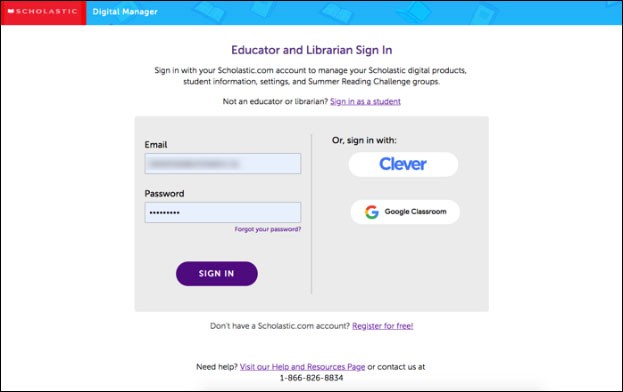
Go to digital.scholastic.com and sign in using your Scholastic account. If you don't have an account, follow the on-screen instructions to register and enter the access code from your Teacher's Guide.
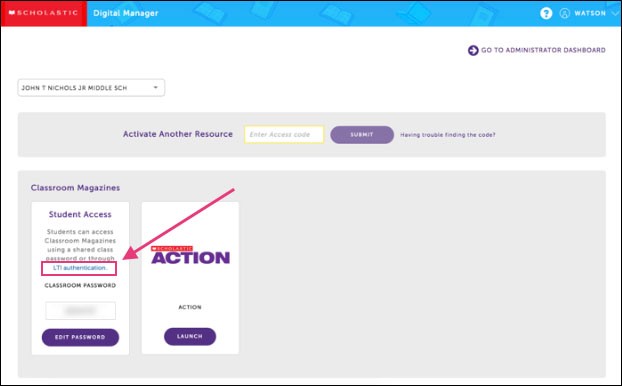
Step 2. Select "LTI Authentication"
Step 2. Select "LTI Authentication"
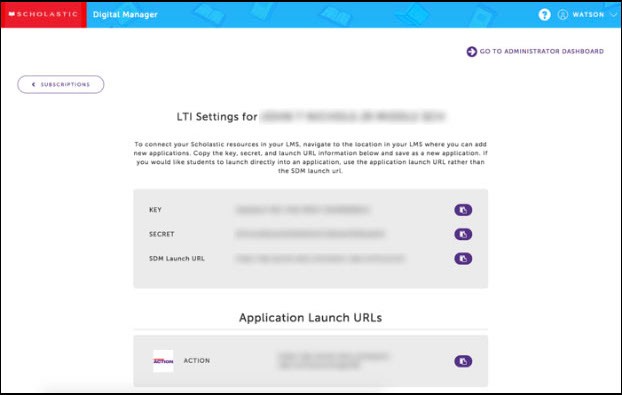
Step 3. Copy your LTI credentials.
Step 3. Copy your LTI credentials.
Copy your LTI key, secret, and application launch URL.
STEP 4. Add the Scholastic Digital Manager Application in Schoology.
STEP 4. Add the Scholastic Digital Manager Application in Schoology.
(Note: this step must be performed by somone with administrator privileges in Schoology. Some teachers may have access, but many will need to contact IT for support, or this step cannot be completed successfully.)
1. In Schoology, select the "App Center" icon at the top of Schoology
2. Search for and select "Scholastic Digital Manager"
3. Select "Install LTI App" and follow onscreen prompts to add the app to your organization and to the relevant course(s) and user(s)
4. Select "Configure" and use the LTI secret, key, and application launch URL you copied from Scholastic to link the app to your subscription.
For more information on adding an Application in Schoology, click here.
Step 5. Teachers launch Scholastic Digital Manager and activate subscription(s).
Step 5. Teachers launch Scholastic Digital Manager and activate subscription(s).
1. Teachers must then launch their course in Schoology and select the Scholastic Digital Manager link in Schoology's course navigation menu.
2. When prompted in SDM, enter grade level and magazine access code, provided by Scholastic.
You're all set!
You're all set!
Students will now only have to remember their Schoology login to access Scholastic.
Once enabled, this will send students directly into your magazine website when they log into your Schoology course.
Updates to your class roster will sync automatically throughout the year.
Questions?
Questions?
We can help! Click here for support.
(Click for information on integrating with Clever or another LMS.)